Security engineer
The security engineer governs software-signing policies, release-scoped role-based access controls, scan-before-sign requirements, and signing evidence across development and production environments.
They ensure only approved identities, teams, releases, keys, certificates, signing environments, and workflows can produce trusted software artifacts while enforcing product-specific signing policies for file types, file sizes, algorithms, and end-to-end signing operations.
Using Software Trust Manager, a security engineer can:
Define product- and release-scoped signing governance through teams, roles, keypair profiles, certificate profiles, projects, and releases.
Separate CI/CD readiness checks from signing authorization in Software Trust Manager.
Create or coordinate user and service-user access for engineers, build automation, signers, release engineers, and auditors.
Restrict signing by environment, keypair, certificate, signer, release window, signature limit, and approval workflow.
Use threat detection and CI/CD gates to support scan-before-sign workflows.
Review approved and rejected signing paths to validate policy behavior before production use.
Review audit logs, signature logs, scan history, and exportable evidence for release assurance and incident response.
Coordinate with Trust Lifecycle Manager and CI/CD tools where workflows extend beyond Software Trust Manager.
Anmerkung
This role is not predefined. Create a custom user role by assigning the required permissions as needed.
The security engineer persona typically needs the following Software Trust Manager permissions, depending on organizational policy:
Category | Permission | Description | Notes |
|---|---|---|---|
User settings | Default | View own profile and generate own API key and client authentication certificate in DigiCert ONE. | |
Teams | Manage my teams or manage all teams | Create or update teams and map signing resources to aManage my teams or manage all teamsuthorize users or service users. | |
Audit logs | View audit log and export audit logs | View and export audit and signature logs for goverView audit log and export audit logsnance, compliance, and incident review. | ‘View audit log’ is required as an additional permission to export audit logs. |
Certificates | View certificate template; view/manage certificate profiles; generate, import, revoke, and view certificates | Govern certificate policy and manage certificates tied to signing keypairs. | |
Keypairs | Generate, import, view, and manage keypairs; request/approve export or delete where allowed; manage master GPG key where applicable | Create and manage keypair profiles | |
Threat detection | Manage threat detection | Assign scans, review scan results, and support scan-before-sign governance. |
Confirm the security engineer has the required permissions for teams, keypairs, certificates, releases, audit logs, signing validation, and threat detection.
Identify whether users are standard users or service users. Service users are appropriate for automation such as build servers and do not represent a real person.
Define the trust model for the workflow, such as public trust, private trust, GPG signing, or internal release signing.
Enable teams, keypair profiles, and certificate profiles where the workflow depends on scoped access and standardized key or certificate generation.
Define development and production signing separation by policy, team assignment, release process, and protected key storage.
Identify which controls belong in CI/CD or artifact systems, such as branch, build status, file type, file size, package naming, test status, scan status, SBOM, and artifact location.
Identify which controls Software Trust Manager will enforce, such as signer identity, team/resource access, keypair and certificate authorization, release windows, approvals, signature limits, and logs.
Confirm whether log exports must feed SIEM, GRC, BI, data lake, or audit-reporting systems.
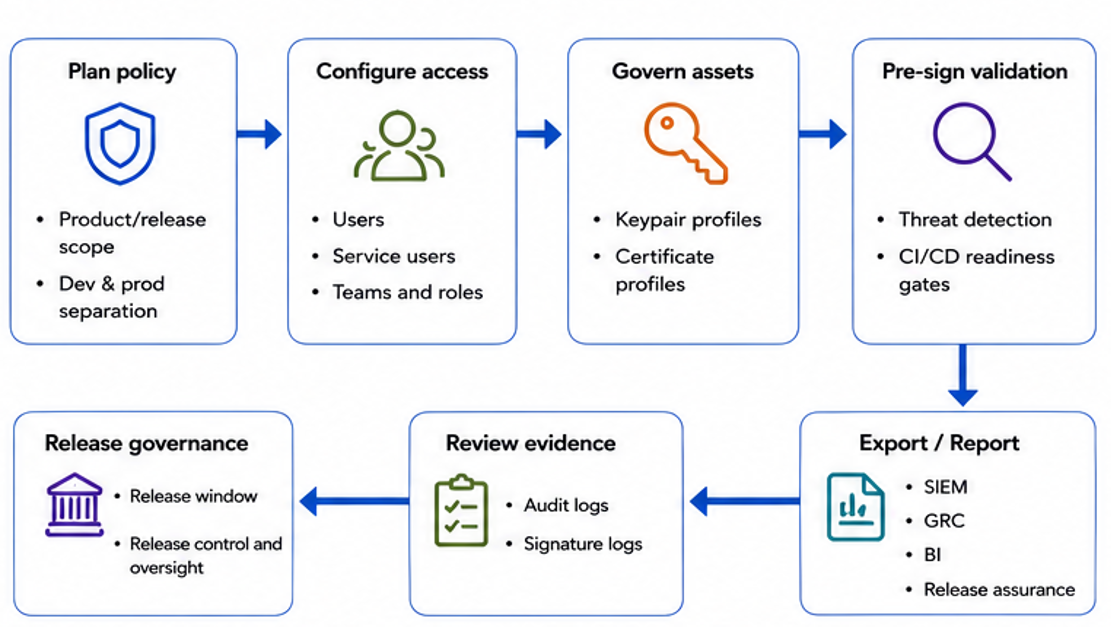
Before assigning signing resources, identify who needs interactive access and which workflows need automation identities. Standard users can access DigiCert ONE. Service users are used for machine workflows such as build servers.
Sign in to DigiCert ONE.
In the Managers grid menu, select Account.
For a standard user, go to Access > Users and select Add user.
For an automation identity, go to Access > Service User and select Create service user.
Assign the role and permissions required for the intended workflow, using the narrowest access that supports the security model.
Use teams to group users, service users, and resources by product, environment, or release responsibility. Teams help restrict keypairs, releases, keypair profiles, and certificate profiles to the identities that should use them.
In Software Trust Manager, go to Account > Teams.
Select Create team.
Create product-specific teams, such as development signing, production signing, release approval, build automation, and audit review.
Map the relevant users, service users, keypairs, releases, keypair profiles, and certificate profiles to the correct team.
Validate that development and production resources are not assigned to the same audience unless policy explicitly allows it.
Keypair profiles standardize keypair generation by preconfiguring approved options. For security engineering workflows, maintain separate profiles when policy differs by product, environment, trust model, algorithm, or release control.
In Software Trust Manager, go to Keypairs > Keypair profiles.
Select Create keypair profile.
Configure approved key-generation parameters for the intended product, environment, and signing use case.
Create separate development and production profiles when the environments require different settings.
Assign the profile to the team that is allowed to generate or use keypairs under that policy.
Certificate profiles preconfigure certificate options and help ensure that signing certificates are created consistently. Use them to align certificate issuance with the intended trust model and product policy.
In Software Trust Manager, go to Certificates > Certificate profiles.
Select Create certificate profile.
Configure the certificate options for the signing workflow.
Create separate profiles when public trust, private trust, product, environment, or certificate policy differs.
Assign the certificate profile to the appropriate team or workflow.
If the workflow requires publicly trusted certificates, connect Software Trust Manager to CertCentral before generating the relevant certificate.
In Software Trust Manager, go to Integration > CertCentral.
Link the CertCentral account by signing in, creating an account, or connecting with a CertCentral API key.
If using an API key, generate it in CertCentral from Automation > API Keys > Add API Key.
Securely store the API key when it is shown, because it is displayed only once.
Anmerkung
Depending on organizational policy, the Security Engineer role requires appropriate Software Trust Manager permission. If the role involves creating releases, you must assign the necessary permissions to enable role creation.
Releases protect signing keys by restricting when keypairs can be used, who can use them, and the maximum number of signatures allowed during a release window.
In Software Trust Manager, go to Releases > Releases.
Select Create release.
Define the product or release scope, release window, authorized signers, and signature limits.
Map the approved keypairs, certificates, teams, and projects to the release.
Use request and approval steps where separation of duties is required.
Place artifact‑readiness validation in your CI/CD pipeline or artifact management systems and centralize signing authorization in Software Trust Manager. This clear separation helps prevent policy drift and avoids placing unsupported expectations on the signing platform to enforce artifact‑level requirements
Validate branch, repository, build, test, package, file type, file size, SBOM, and artifact-location rules.
Approve only the approved artifact, signer identity, keypair or certificate reference, project, and release context into the signing workflow.
Use Software Trust Manager to enforce signer identity, team/resource access, keypair and certificate authorization, release window, approvals, signature limits, and auditability.
Threat detection helps security teams review artifact risk before applying a trusted signature. Use scan results with CI/CD gates and release approval processes so risky artifacts are remediated or exception-reviewed before signing.
Confirm that the artifact is associated with the correct product, project, team, and release context.
Ensure that the project repositories and releases are continuously monitored for security vulnerabilities and signing issues using the Software Trust Manager release security capability.
Ensure that scans are performed on repositories and releases every 24 hours to detect new risks.
Ensure that vulnerabilities are identified in source code, including CVEs, CWEs, injection flaws, and insecure configurations.
Review SBOM (Software Bill of Materials) analysis to identify vulnerable third-party dependencies and affected versions.
Continuously re-evaluates current and historical releases data when new vulnerabilities are disclosed.
Review scan results and decide whether remediation, exception approval, or release blocking are required.
Ensure that signing proceeds only after scan gate and release‑readiness checks satisfy all policy requirements.
Keep scan history and signing evidence available for audit and incident review.
Run an approved signing request using an authorized user or service user, assigned team, approved keypair, approved certificate, and active release window.
Verify the signed artifact using the required verification tool or release validation process.
Attempt a rejected signing request using the wrong user, wrong team, wrong keypair, wrong certificate, inactive release window, or exceeded signing limit.
Confirm that Software Trust Manager blocks the request and records the relevant event.
Adjust team mapping, profiles, releases, or CI/CD policy only when the test result does not match the intended control model.
Use audit logs and signature logs to prove who signed, what was signed, when it was signed, which keypair and certificate were used, and which governance events occurred before or after signing.
Open Signature Logs to review signer, artifact, timestamp, certificate, keypair, signing tool, signing status, checksum, digest algorithm, file name, and TSA URL where available.
Open Audit Logs to review keypair creation, profile changes, team assignment, release activity, certificate actions, approval workflows, access denials, and sensitive key actions.
Filter by user, team, keypair, certificate, project, release, signing tool, event type, or date range.
Export audit or signature logs when the evidence must be reviewed in an external reporting, SIEM, GRC, or compliance platform.
Connect successful, failed, and rejected events back to the product release so reviewers can reconstruct the signing decision path.
Show artifact metadata such as checksum, file name, digest algorithm, timestamp, and signing tool where available.
Export or discuss log and reporting options. Connect the evidence back to the project and release.