Crypto engineer
The crypto engineer manages cryptographic assets, governs software-signing keypairs, and traceability across development and production environments. Users with this role enforce policies and monitor compliance across the account.
Using Software Trust Manager, crypto engineer can:
Define approved signing-key and certificate policy through profiles
Generate and manage HSM-backed signing keypairs for development and production environments
Associate certificates with governed keypairs
Assign signing assets to teams, projects, and releases
Verify approved artifacts
Review audit and signature logs for end-to-end traceability
Use and review service integrations with GitHub, CertCentral, PKI/CA, KMS/HSM, and CI/CD tools to ensure seamless extended workflows beyond Software Trust Manager
Note
This role is not predefined. Create a custom user role by assigning the required permissions as needed.
The Crypto Engineer persona typically needs the following Software Trust Manager permissions, depending on organizational policies:
Category | Permission | Description | Notes |
|---|---|---|---|
User settings | Default | View own user profile and generate own API key and client authentication certificate in DigiCert ONE. | |
Audit logs | View audit log and export audit logs | View and export audit and signature logs for governance and traceability review. | View audit log is required to export audit logs. |
Certificates | Manage certificate profiles; generate, import, revoke, and view certificates | Create certificate profiles, generate or associate signing certificates, and view certificate details tied to signing keypairs. | |
Keypairs | Generate, import, view, and manage keypairs; manage master GPG key where applicable | Create and manage signing keypairs, keypair profiles, rotations, CSRs, and GPG master/subkey workflows. |
Ensure that:
You have been assigned the appropriate Software Trust Manager permissions for keypairs, certificates, audit logs, teams, and signing.
Your organization has defined the trust model for the signing workflow, such as public trust, private trust, GPG signing, or internal release signing.
Development and production signing environments are separated by policy, team assignment, release process, or HSM-backed storage as required.
Teams, keypair profiles, and certificate profiles are enabled where your workflow depends on them.
A certificate profile and keypair profile exist or can be created for the signing use case.
Any broader CA hierarchy, OCSP/CRL publication, certificate lifecycle, or general-purpose KMS requirement has an identified owner outside STM when needed.
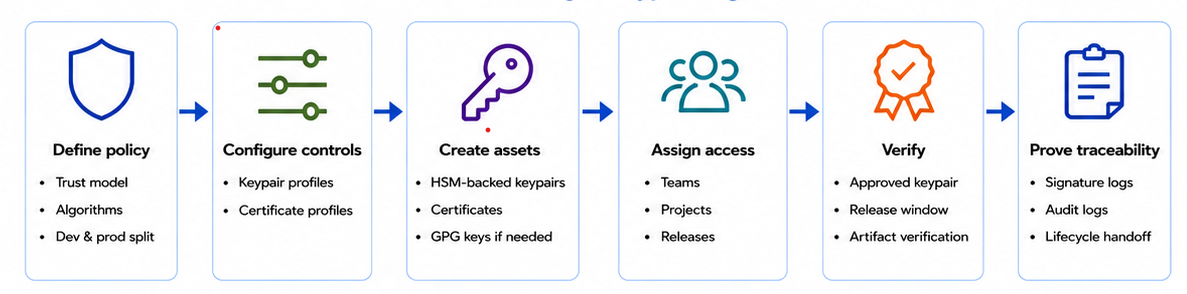
Keypair profiles standardize keypair generation by preconfiguring approved options. For crypto engineering workflows, maintain separate profiles when policy differs by environment, product, trust model, or algorithm.
In Software Trust Manager, go to Keypairs > Keypair profiles.
Select Create keypair profile.
Configure the approved signing-key parameters for the intended workflow.
Create separate development and production profiles when the environments require different control settings.
Assign the profile to the appropriate team so key generation follows approved policy.
A keypair is required to create a certificate and sign. Generate keypairs from approved profiles so the signing resource is governed by creation. Development and production keypairs are visible in Software Trust Manger inventory, protected by the configured storage model, and assigned only to the teams and releases that should use them.
In Software Trust Manger, go to Keypairs > Keypairs.
Select Create keypair.
Choose the appropriate profile, environment, and team assignment.
Optionally select Generate certificate during keypair creation when the workflow requires a certificate immediately.
For GPG workflows, go to Keypairs > GPG keypairs and select Create master key or Create subkey.
Certificate profiles preconfigure certificate options and help ensure that signing certificates are created consistently.
In Software Trust Manager, go to Certificates > Certificate profiles and select Create certificate profile.
Configure the certificate options for the signing workflow, create separate profiles when public trust, private trust, product, environment, or certificate policy differs, then assign the profile to the appropriate team or workflow.
A certificate is required to sign. You can generate certificates; generate a public or private code-signing certificate and bind it to the appropriate keypair.
In Software Trust Manger, go to Keypairs > Keypairs.
Hover over the desired keypair and select the more actions icon.
Select Generate certificate.
Choose the certificate profile that matches the intended trust model and signing workflow.
Confirm that the certificate is associated with the intended keypair before enabling signing use.
If the workflow requires publicly trusted certificates, connect Software Trust Manager to CertCentral before generating the relevant certificate.
In Software Trust Manager, go to Integration > CertCentral.
Link the CertCentral account by signing in, creating an account, or connecting with a CertCentral API key.
If using an API key, generate it in CertCentral from Automation > API Keys > Add API Key.
Securely store the API key when it is shown, because it is displayed only once.
After the team, key pair, certificate, and release controls are established, the assigned resource can sign the artifact using the designated key pair. Once signing is complete, you can verify the signing performed by the assigned resource or team.
Verify the signed artifact with the required verification tool.
Confirm that the signing event appears in signature logs.
Use signature logs and audit logs to prove which keypair and certificate were used, who initiated the action, and which governance events occurred before or after signing.
Open Signature Logs to review signer, artifact, timestamp, certificate, keypair, signing tool, and signing status.
Open Audit Logs to review keypair creation, profile changes, team assignment, release activity, certificate actions, approval workflows, and sensitive key actions.
Filter by user, team, keypair, certificate, project, release, signing tool, event type, or date range.
When products are renamed, split, consolidated, or redesigned, preserve signing history while moving new signing activity to the correct resources.
Review the existing project, release, keypair, certificate, and historical signing logs.
Create or update keypair and certificate profiles if the redesigned product changes signing policy.
Generate a new keypair or associate a new certificate when the redesign requires a new signing asset.
Assign the new signing asset to the correct team and release.
Update CI/CD signing references to the new keypair or certificate.
Verify the redesigned artifact.
Review old and new signing logs side by side, then retire or revoke old resources where appropriate.
For software signing, prefer patterns that keep private signing keys protected. Exchange public keys, CSRs, certificates, attestations, or signed artifacts whenever possible.
Review the keypair inventory and confirm whether the private key is intended to be non-exportable.
Use role separation and approval workflows for sensitive key actions such as export or delete where supported and policy-approved.
Share public key, CSR, certificate, attestation, or signed artifact material instead of private key material whenever the workflow allows.
Review audit logs for any sensitive key-related action.
Treat proprietary key wrapping, intermediate-key plus IV formats, symmetric-key exchange, and key check value workflows as architecture-validation items outside the standard Software Trust Manager signing path unless confirmed otherwise.