Signing approver
The signing approver reviews and decides on sensitive signing-related actions before they affect production trust.
Using Software Trust Manager, a signing approver can:
Approve, reject, or request clarification for high-risk signing-resource actions.
Verify the keypair, certificate, team, profile, release, and artifact context before granting signing approval.
Use release windows, approved users or teams, and signature-count limits to keep signing authority controlled.
Use audit and signature logs to preserve evidence of requester, approver, timestamp, and action history.
Connect Software Trust Manager approval evidence to external tickets, release records, documents, chat threads, email chains, or meeting notes.
Nota
This role is not predefined. Create a custom user role by assigning the required permissions as needed.
The Signing Approver role contains the following Software Trust Manager permissions:
Category | Permission | Description | Notes |
|---|---|---|---|
User access | DigiCert ONE access | User can access DigiCert ONE and Software Trust Manager | |
Role assignment | Software Trust user role | Assign a role that supports approval activities and required visibility This role must have the permissions to approve signing requests | |
Governance | Approvals and governance | Review and approve signing requests according to policy | |
Audit logs | Logs | Review audit and signature logs | |
Teams | Team membership | Scope approvals using team-based access |
Ensure that:
You have access to DigiCert ONE and the Software Trust Manager.
You have been assigned a role that supports signing approval activities and required visibility.
Keypair profile and certificate profile governance are configured for the target signing model.
A keypair and associated certificate are available for the signing workflow.
A default certificate is assigned when signing will be performed through SMCTL.
A release workflow exists when controlled keypair use, approved date/time windows, user restrictions, or signature-count limits are required.
External evidence is available in the relevant system, such as a change ticket, release ticket, document repository, Slack or Teams thread, email approval chain, or meeting notes.
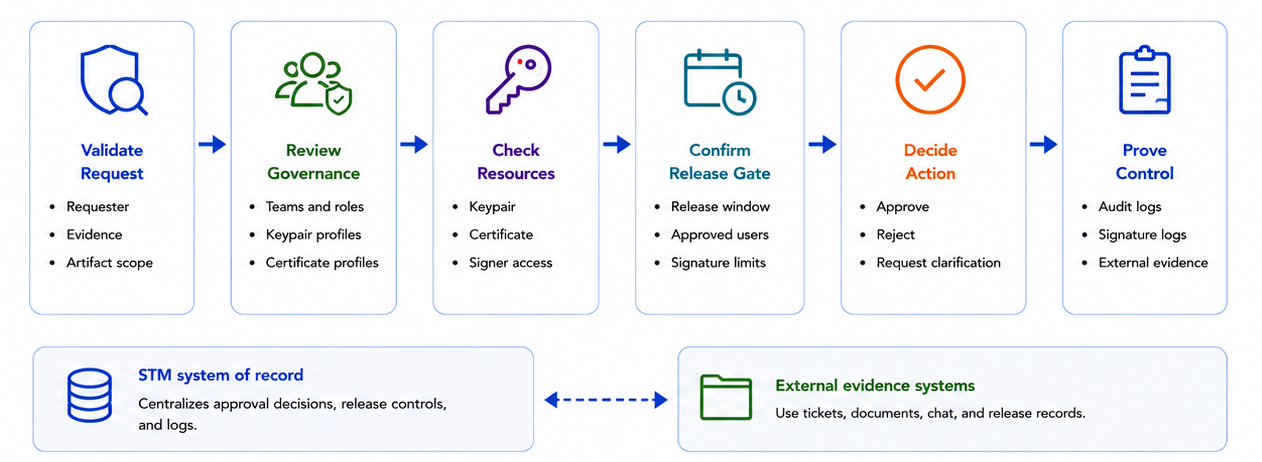
Before deciding on a request, confirm that the request is tied to the right people, resources, and policy context.
Sign in to DigiCert ONE and select Software Trust Manager.
Confirm the requester, approver, signer, and auditor roles are represented by the correct teams or roles.
Review the keypair profile and certificate profile tied to the request.
Confirm the request identifies the product, release, keypair, certificate, artifact or file set, requester, risk level, and supporting evidence.
Use these checks when the approval path involves key enrollment, key rotation, certificate issuance, or release readiness.
For a standard keypair, review the keypair under Keypairs > Keypairs. If the workflow includes new key creation, confirm whether a certificate should be generated during creation.
For GPG workflows, review the master key or subkey under Keypairs > GPG keypairs. Use subkeys for signing so an affected subkey can be revoked and replaced without replacing the master key.
For an existing keypair that needs a certificate, confirm that the requested certificate generation is appropriate for the workflow.
Confirm the keypair has the certificate required for the signing workflow. For SMCTL signing, confirm the keypair has a default certificate.
When controlled production signing is required, use the release to keep signing authority bounded and policy-controlled.
Open or create the release under Releases > Releases.
Review the release window, allowed keypairs, approved users or teams, and maximum signature count.
Confirm the release aligns to the external change or release evidence.
Use the release to show that signing authority is time-bound and governed rather than informally granted.
Approve only when the request is complete, policy-compliant, and tied to the correct release or operational need.
Open the pending action or workflow item in Software Trust Manager.
Compare the requested action against the approved change or release evidence in the external system.
Validate that the keypair, certificate, release, requester, signer, and artifact scope match the evidence.
Approve the request and offline releases when the details are complete and aligned.
Reject or request clarification when evidence is missing, the wrong team has access, the release window is incorrect, or the action does not match the external approval record.
After approval or rejection, review audit logs or signature logs for requester, approver, timestamp, and action history.
Record the Software Trust Manager audit reference in the external ticket or release record so business context and system evidence stay connected.