Quick start: Set up a cloud scan
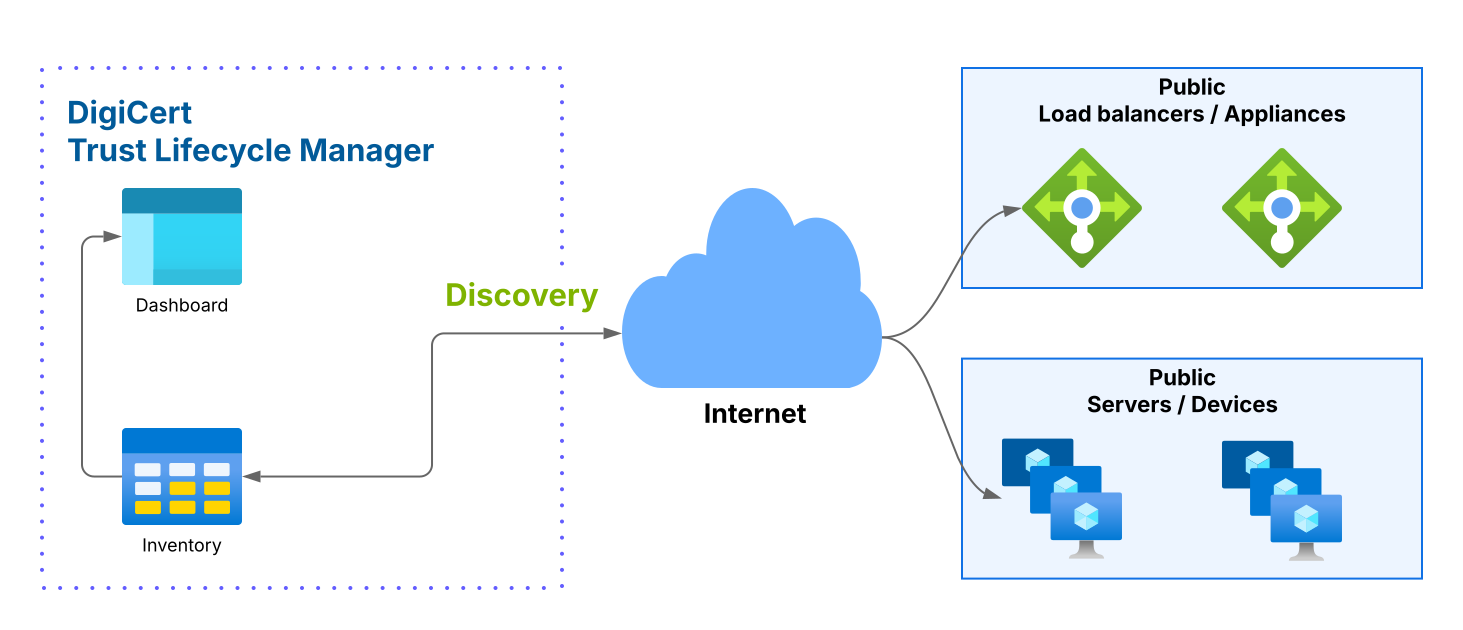
Cloud scans use DigiCert’s hosted infrastructure to discover publicly accessible TLS/SSL certificates across your external-facing domains and IP addresses without the need for a sensor, helping you build a complete inventory of internet-exposed certificates in DigiCert® Trust Lifecycle Manager.
This quick start guide shows you how to create and run a cloud scan, and then review the discovered certificates in your inventory.
Objectives
Create a cloud scan to discover certificates on public domains and IP addresses.
Configure scan targets and ports, then run the scan.
Review scan results and view the certificates in your inventory.
 |
Before you begin
The Cloud Discovery feature must be enabled for your account. For help verifying or enabling this feature, contact your DigiCert account representative.
To configure cloud scans, you need the Manager user role for Trust Lifecycle Manager.
Gather needed information for configuring the scan:
Scan targets (public FQDNs or IP addresses) to scan.
The business unit to use for managing the discovered certificates and the scan itself.
To ensure discovered certificates include appropriate metadata, set up assignment rules before running cloud scans. This helps identify, organize, and manage the certificates in your Trust Lifecycle Manager inventory.
スキャン設定
Start by creating the scan and configuring basic properties for it.
Trust Lifecycle Manager アカウントで、左のメインメニューから[ディスカバリーおよび自動化ツール]>[ネットワークスキャン]に進みます。
[ネットワークスキャン]ページで、[スキャンの追加]を選択します。
[一般情報]ページで、新しいスキャンについて以下の基本プロパティを設定します。
[スキャン名]: スキャンの記述的な名前を入力します。
[事業部門]: このスキャンが属する事業部門を選択します。
[スキャンタイプ]:
Cloud scanを選択します。このオプションは、発行認証局(CA)にかかわらず、パブリック接続 TSL/SSL 証明書の IP アドレス/FQDN をスキャンするために使用します。
[次へ]を選択します。
このセクションでは、クラウドスキャンを使用してスキャンするターゲットリソースを指定できます。クラウドスキャンでは、HTTPS トラフィックに一般的に使用されるポート 443 のみがチェックされます。
Under IP addresses/FQDNs, add targets to include and exclude:
Include FQDNs and IP addresses: Enter targets and select Include. You can include a single IP address (8.8.8.8) or FQDN (example.com).
Exclude FQDNs and IP addresses : Enter targets and select Exclude. You can exclude a single IP address (8.8.8.8) or FQDN (example.com).
Optionally, import targets from a CSV file to include or exclude IP addresses and FQDNs.
重要
Private IP addresses and wildcard domains are not supported in cloud scans. If these are included in the uploaded CSV, they are automatically excluded, and you will receive an alert.
Select Next.
On the Scan options screen, select what information the scan collects and how it assigns metadata to discovered certificates.
暗号スイートや HTTP ヘッダー、TLS/SSL 拡張プロトコルの詳細などの追加データを含めるには、[ディープスキャンの有効化]チェックボックスを選択します。これにより、スキャン時間が長くなる可能性があります。
Business unit: (Optional) Assign a business unit to the discovered certificates. If selected, only admins in that business unit can manage the certificates.
Certificate assignment rules: (Optional) Select rules to automatically assign metadata (tags and owners) to the discovered certificates. This helps identify and manage the certificates in inventory.
[次へ]を選択して設定プロセスを続行します。
On the Schedule screen, choose whether to run the scan now or schedule it for later:
Select one of the following options:
To finalize the scan, select one of the following:
次の手順
Your scan runs now or as scheduled. Scan completion time depends on network size and the scan performance settings selected during set up.
Certificates found through the scan are added to Inventory > Certificates and included in your dashboard.
When the scan run is complete, results appear in the scan listing on the Discovery & automation tools > Network scans page. Select the links in the Scan results column to view the discovered certificates.
Results are cached for up to 8 hours to optimize performance. After 8 hours, scan data expires and is no longer available in the UI.