Signing submitter
The signing submitter prepares signing requests, validates assigned signing assets, and signs approved software artifacts using Software Trust Manager. Users with this role follow governed signing paths while private signing keys remain protected in Software Trust Manager.
Using Software Trust Manager, signing submitter can:
Verify that the assigned keypair and default certificate are available for signing
Choose the approved signing path for the artifact type and operating system
Install and validate DigiCert ONE Clients and SMCTL
Request or use a release window when release-controlled signing is required
Submit a file or folder for signing through SMCTL, Click-to-sign, or supported third-party signing tools
Validate signed output and support traceability through signature and audit logs
Opmerking
This role is not predefined. Create a custom user role by assigning the required permissions as needed.
The Signing Submitter role typically needs the following Software Trust Manager permissions, depending on organizational policies:
Category | Permission | Description | Notes |
|---|---|---|---|
User settings | Default | View own user profile and generate own API key and client authentication certificate in DigiCert ONE. | |
Signatures | Sign | Sign software with keypairs assigned to the user. | |
Keypairs | View keypair | View keypairs and key rotations relying on keypairs assigned to the user. | |
Certificates | View certificate | View certificate details for certificates assigned to the user. | |
Releases | Request release; View release | Request an offline release and view release details when release-controlled signing is required. | |
Audit logs | View audit log | View audit and signature logs for traceability after signing. |
Ensure that:
You have access to DigiCert ONE and Software Trust Manager.
You are assigned to the keypair that will be used for signing and the assigned keypair has a default certificate.
You have the file or folder that needs to be signed.
Your organization has confirmed whether the signing workflow requires a release window.
The required signing approach is known such as simple SMCTL signing, traditional tool-based signing, Click-to-sign, or direct third-party signing.
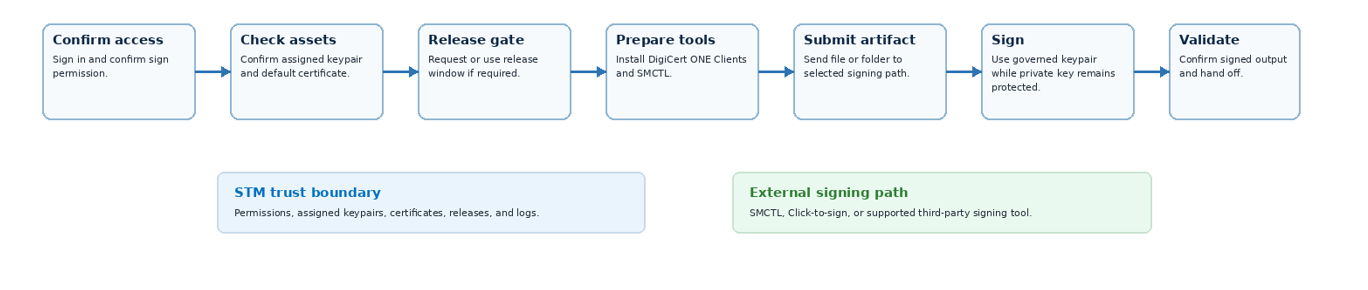
Before signing, confirm that Software Trust Manager access and signing assets are ready.
Sign in to DigiCert ONE.
From the Managers grid menu, select Software Trust.
Confirm that your user role includes sign permission.
Confirm that you are assigned to the keypair that should be used for signing.
Confirm that the keypair has a default certificate.
Choose the signing path that best aligns with the artifact type, operating system, and the required level of control.
Use simple signing with SMCTL for the fastest supported path when no third-party signing tool options are required.
Use traditional tool-based signing when platform-specific tools such as signtool, jarsigner, or osslsigncode are required.
Use Click-to-sign for Windows-based interactive signing.
Use direct third-party signing tools when an existing signing command must authenticate to Software Trust Manager through the required cryptographic library.
Use the DigiCert ONE Clients app to download and manage the tools required for the selected signing path.
In Software Trust Manager, select Resources > Client tool repository.
Download DigiCert ONE Clients for your operating system.
Run the installer and follow the setup wizard.
Open DigiCert ONE Clients and install SMCTL.
For SMCTL authentication, choose stored credentials, dynamic authentication, or a service user according to the organization workflow.
Verify that the client can connect to DigiCert ONE and that signing tools are ready.
Open SMCTL from DigiCert ONE Clients.
Run
smctl healthcheck.Confirm that the output shows a connected status.
Review whether signing is available and whether expected signing tools are mapped.
Some organizations restrict signing to approved release windows. Releases protect keys by controlling when a keypair can be used, who can use it, and the maximum number of signatures allowed during the window.
In Software Trust Manager , go to Releases > Releases.
Select Create release.
Complete the release request according to organization policy, including the release window, allowed keypairs, allowed users, and signature limits where applicable.
Wait for the required approval or release availability before signing.
Opmerking
Depending on organizational policy, the signer submitter role requires appropriate Software Trust Manager permission. If the role involves signing the artifact, you must assign the necessary permissions to the role.
After access, assets, tools, and any release controls are ready, sign the target file or folder.
Confirm that the artifact type is supported by the selected signing path.
Run the SMCTL, Click-to-sign, or third-party signing workflow selected for the artifact.
Use the assigned keypair and default certificate.
Keep the signed artifact in the expected release, build, or storage location.
Opmerking
Depending on organizational policy, the signer submitter role requires appropriate Software Trust Manager permission. If the role involves signing the artifact, you must assign the necessary permissions to the role.
After signing, confirm that the output is ready for handoff.
Verify that the output artifact is signed.
Confirm that the signed artifact is stored or handed off according to the release workflow.
If threat detection is part of the subscription and workflow, review scan results before release.
Record the signing context required by the internal process, such as requester, release, artifact, keypair, certificate, date/time, and approval reference.
Use signature logs and audit logs to prove what was signed, who initiated the action, and which keypair and certificate were used.
Open Signature Logs to view signer, artifact, timestamp, certificate, keypair, signing tool, and signing status.
Open Audit Logs to view release activity, certificate actions, approval workflows, and sensitive key actions.
Filter by user, keypair, certificate, release, signing tool, event type, or date range.