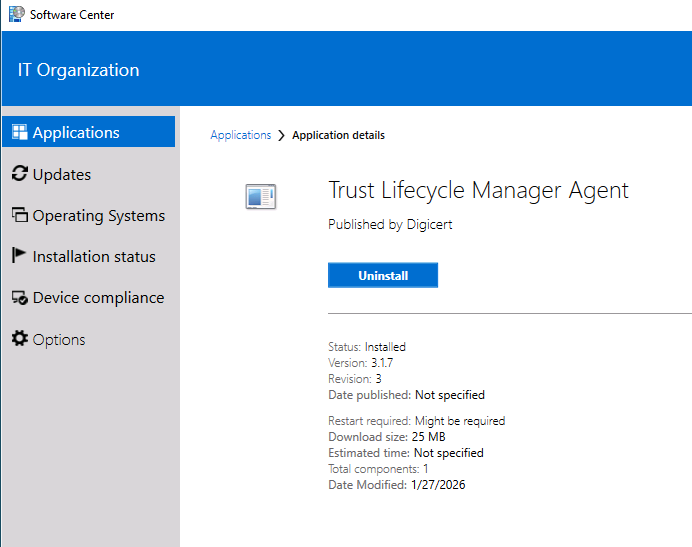
System Center Configuration Manager (SCCM) installation method
This topic describes how to install the DigiCert® agent application on your Windows servers using the Microsoft System Center Configuration Manager (SCCM) in silent mode.
This procedure covers the installation of the agent only, and does not include the installation or configuration of SCCM. Silent-mode installations typically require a companion application to authenticate and provision the agent. However, the SCCM method described in this topic does not require the companion application.
Software requirements
SCCM is already installed on the target servers and is operational. You can view the target servers on the Software Library > Overview > Devices > All Desktop and Server Clients page.
.exeinstaller is the recommended installer for agent deployments, and is used in this procedure. Download the latest installer from the Discovery & automation tools > Client tools page in Trust Lifecycle Manager. Agent version 3.1.7 and later is supported.Agent executable (
.exe) file is available in a shared folder (\\server-name\SCCMSources) that can be accessed by the SCCM client.
API key for DigiCert ONE
You need a DigiCert® ONE service user token ID to authenticate agents for silent mode installation. See Create a service user for detailed instructions about how to create and download an API service user token ID. Make sure the service user includes the following properties:
Accounts that can use this service user includes your DigiCert® Trust Lifecycle Manager account.
DigiCert ONE Manager access includes Trust Lifecycle.
Roles and permissions includes the
Infrastructure adminandUser and certificate manageruser roles for Trust Lifecycle Manager.
注意
You can reuse the same service user token ID to install Windows or Linux agents in silent mode. You can disable the service user after the agents are deployed.
Log in to the SCCM console.
From the left-side panel, go to the Software Library > Overview > Application Management > Applications page.
Select Create Application.
Configure the following settings in the Create Application Wizard:
Select the Manually specify the application information radio button and select Next.
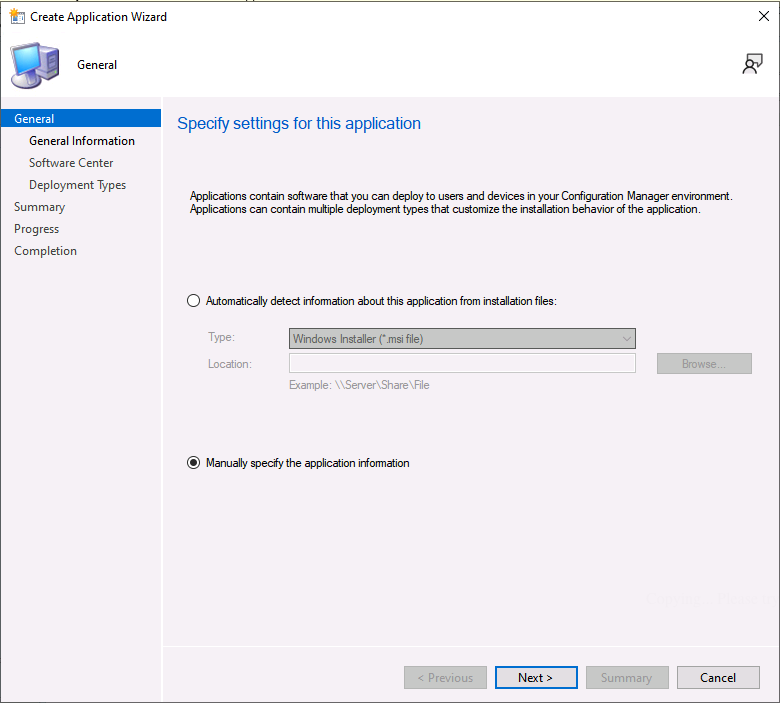
On the General Information screen, enter the following basic information:
Name: Enter a name for the application.
For example: TLM Agent
Publisher: Enter DigiCert as the publisher.
Software version: Enter the agent version number.
注意
Agent version 3.1.7 and later is supported.
You can use this information to help you identify the agent.
Select Next.
On the Software Center screen, the name that you entered for the application on the General Information screen is pre-filled by default. However, you can edit the name of the application here.
Select Next.
Select Browse next to Icon and navigate to an icon on your local file system that you want to use for the installer. Alternatively, select the
.exeexecutable file in the shared folder, to use its icon.On the Change Icon pop-up, select the icon of your choice, and select Ok.
Select Next.
On the Deployment Types screen, do the following:
Select Add.
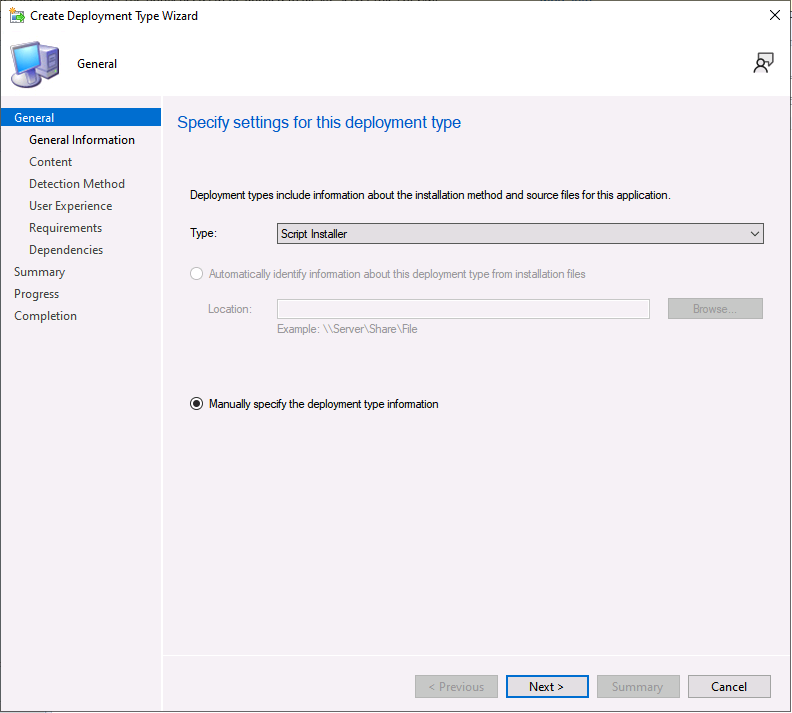
On the Import Information screen of the Create Deployment Type Wizard, do the following:
From the Type dropdown, select Script Installer.
Select the Manually specify the deployment type information radio button.
Select Next.
On the General Information screen, enter a name for the deployment, and select Next.
On the Content screen, do the following:
Content location: Select Browse, and navigate to the location of the shared folder (
\\server-name\SCCMSources).Installation program: Select Browse, and navigate to the agent-name
.exefile found in the shared folder.Uninstall program: Select Browse, and navigate to the agent-name
.exefile found in the shared folder.
注意
When importing the agent-name
.exefile, you might see a message indicating that the file couldn’t be verified. Ignore this message, and select Yes to proceed.
After you've configured the deployment type, you must define the install and uninstall program commands. The install command helps the agent install silently with the required settings.
Define the install command.
Use the following command for production environment:
"DigiCert TLM Agent.exe" /install /quiet /norestart ACCEPTEULA=yes DOACTIVATE=1 DCAPIKEY="API_KEY" DCBUSINESSUNIT="BUSINESS_UNIT_GUID"
Use the following command for demo and non-production environments:
"DigiCert TLM Agent.exe" /install /quiet /norestart DCONE_HOST="demo.one.digicert.com" ACCEPTEULA=yes DOACTIVATE=1 DCAPIKEY="API_KEY" DCBUSINESSUNIT="BUSINESS_UNIT_GUID"
重要
The
DCBUSINESSUNITvalue must be the unique GUID of the business unit. Do not use the business unit display name.小心
If you don’t specify the
DCONE_HOSTparameter in demo and non-production environments, you might encounter the following errors:ERROR agent/core.go:82 Failed to provision the agent: failed to retrieve activation code: error during un-marshaling activation pay load: unexpected end of JSON inputINFO tls/tls.go:473 Response Status: 500 Internal Server Error
Enter the install command in the Installation program field, immediately after the
.exefile that you added in Step 4b of the Configure the deployment type procedure.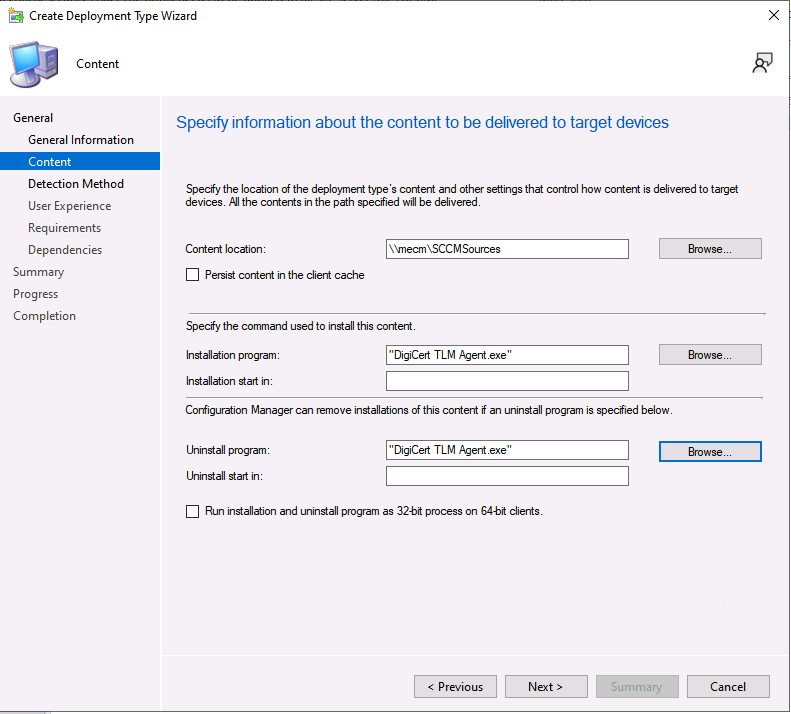
Additional install parameters
You can also add the following additional parameters to the installation command:
Parameter
Example value
Description
AGENTALIAS"my-agent-name"Custom name to identify the agent.
To automatically render the hostname of the server as the
AGENTALIAS, enter%COMPUTERNAME%as the agent alias. For example:AGENTALIAS="%COMPUTERNAME%"AGENTPROXY"http://proxy.example.com:8080"The proxy server the agent uses to connect to the internet.
The agent proxy can include a username and password in plain text, using standard accepted formats, including Basic Authentication.
Define the uninstall command.
"DigiCert TLM Agent.exe" /uninstall /norestart
Enter the uninstall command in the Uninstall program field, immediately after the
.exefile that you added in Step 4c of the Configure the deployment type procedure.Select Next on the Content screen after you've defined the install and uninstall commands.
On the Detection Method screen, select the Configure rules to detect the presence of this deployment type radio button, and then select Add Clause....
On the Detection Rule pop-up, configure the following:
Setting Type: Select Registry from the dropdown.
Hive: Select Browse, and select
HKEY_LOCAL_MACHINEfrom the dropdown.Key: Enter the key path.
For example:
SOFTWARE\Digicert Inc.\DigiCert TLM AgentValue: Enter
Installed.This value acts as a flag indicating that the agent has been installed successfully.
Data type: Select
Integerfrom the dropdown.Select the following radio option: This registry setting must exist on the target system to indicate presence of this application
Select Ok to save the detection method, and then select Next.
On the User Experience screen, configure the following:
Installation behavior: Select Install for system.
Logon requirement: Select Whether or not a user is logged on.
Installation program visibility: Select Normal.
Go through the Requirements, Dependencies, Summary, and Progress screens by selecting Next. You can retain the default settings for these screens as is.
On the Completion screen, after you ensure that all tasks are completed and marked green, select Close. You're returned to the Create Application Wizard.
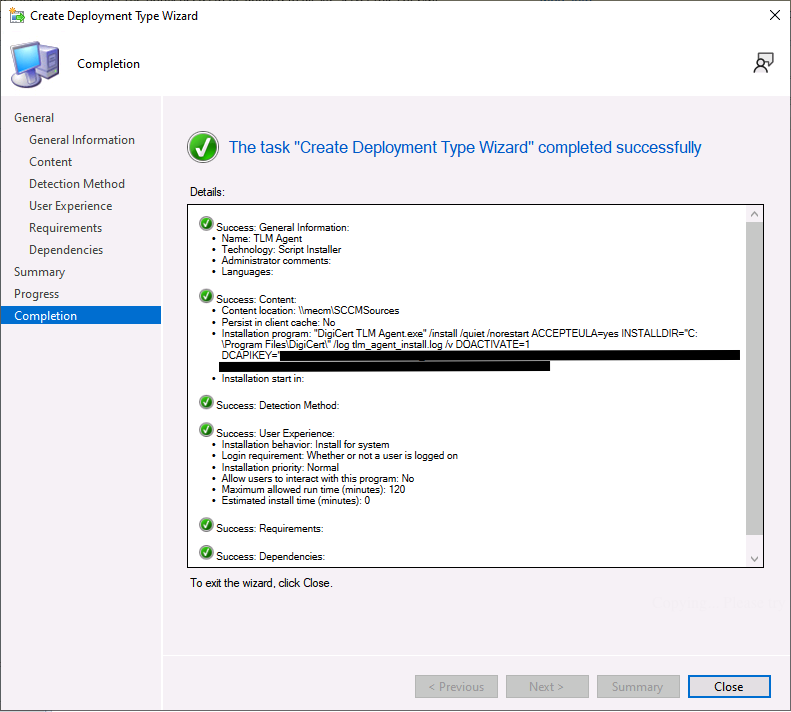
Select Next on the Deployment Types and Summary sections to start the application creation process.
You can view the progress of the application creation process in the Progress section.
Select Close to exit the wizard.
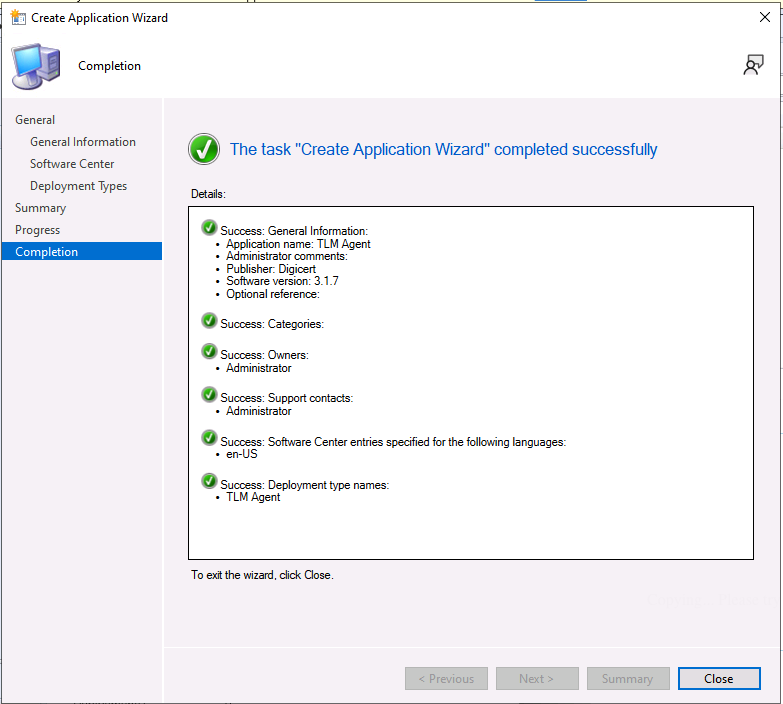
The application is now created and ready for deployment in SCCM.
From the left-side panel of the SCCM client, go to the Software Library > Overview > Application Management > Applications page.
Select Deployment to view the newly created active agent application.
Right-click the application, and select Deploy from the list.
On the Content screen, you must select the set of devices (Collection) that the agent needs for installation. To do this, select Browse > Device Collections > Target-severs, and select Ok.
Select Next.
On the Specify the content destination screen of the wizard, select Add > Distribution Point to add the distribution points, and then select Ok.
Select Next on the Deployment Settings, Scheduling, User Experience, Alerts, and Summary screens to start the deployment process.
You can view the progress of the deployment on the Progress screen.
After you ensure that all deployment tasks are completed and marked green, select Close to exit the wizard.
On the Software Library > Overview > Application Management > Applications page, verify that the Deployment Types and Deployment columns have a value of 1.

This confirms that the application is now assigned to the collection and is ready to be installed on the designated servers.
Log in to the server where the agent application must be installed.
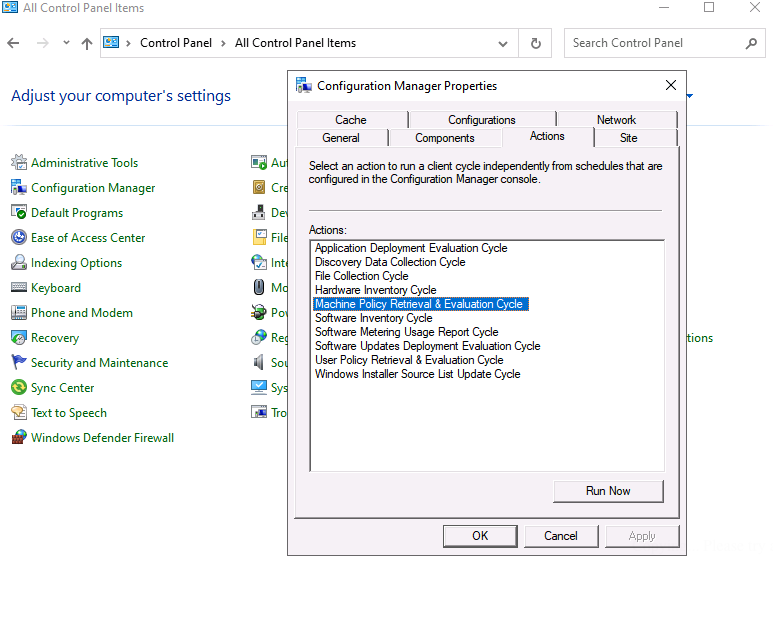
Go to Control Panel > All Control Panel Items > Configuration Manager > Configuration Manager Properties.
From the Actions tab, select Machine Policy Retrieval & Evaluation Cycle, and then select Run Now.
This triggers a process that ensures the application can communicate with SCCM, and might take several minutes to complete.
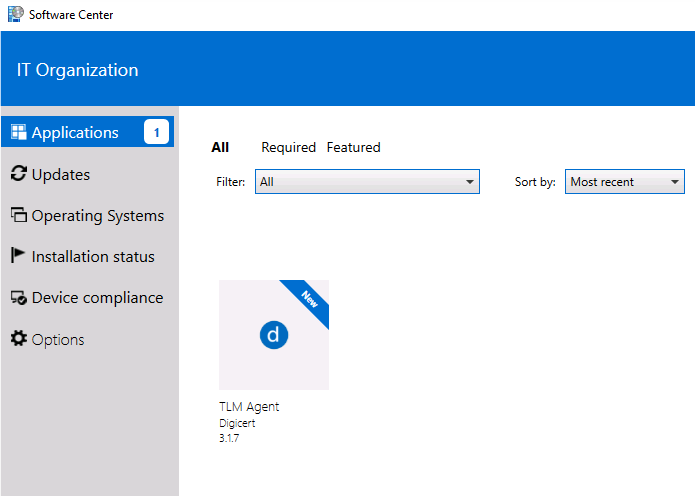
Go to the Software Center > Applications tab on the device, and select the agent you want to install.
It might take several minutes for the Software Center to refresh and display the new agent.
Select the agent icon, and then select Install on the Application details page to install the agent on the server.
Verify the installation
Go to the Program Files > DigiCert > Agent-name folder on the server and verify that the agent has been installed and activated.
Uninstall the application
Go to the Software Center > Applications tab on the server.
Select the agent you want to uninstall.
Select Uninstall on the Application details page to uninstall the agent.