Quick start: Set up an internal network scan
Network scans use a DigiCert sensor to securely discover existing TLS/SSL certificates across your internal network, helping you build a complete inventory of certificates and endpoints in DigiCert® Trust Lifecycle Manager.
This quick start guide shows you how to create and run an internal network scan, and then review the discovered certificates and endpoints in your inventory.
Objectives
Create an internal network scan using a sensor.
Configure scan targets and ports, then run the scan.
Review scan results and view the certificates and endpoints in your inventory.
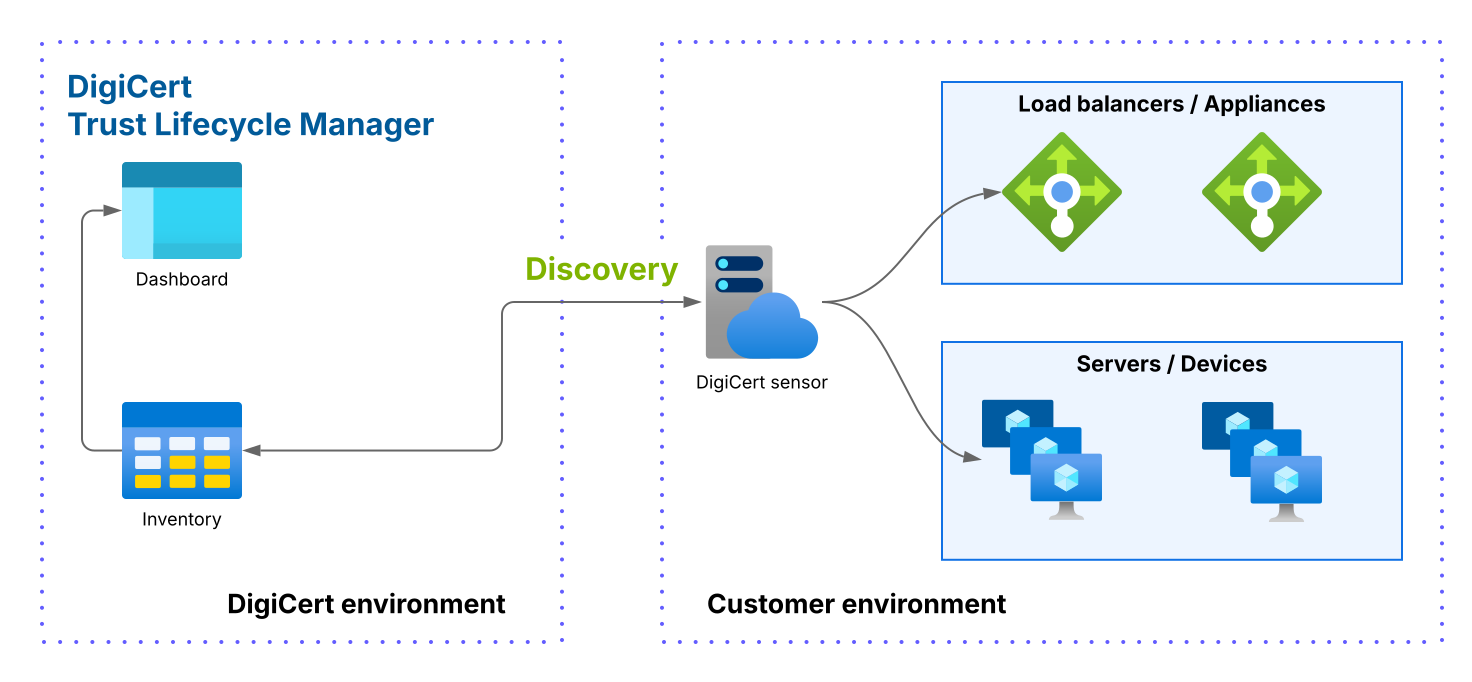 |
Before you begin
You need an active DigiCert sensor on your network with visibility of the systems to target in the scan. See DigiCert sensors.
The Network Discovery feature must be enabled for your account. For help verifying or enabling this feature, contact your DigiCert account representative.
To configure network scans, you need the Manager user role for Trust Lifecycle Manager.
Gather needed information for configuring the scan:
Scan targets (FQDNs or IP addresses) and ports to scan. For IP-based scanning, only IPv4 addresses are supported.
The business unit to use for managing the discovered certificates and the scan itself.
To ensure discovered certificates include appropriate metadata, set up assignment rules before running network scans. This helps identify, organize, and manage the certificates in your Trust Lifecycle Manager inventory.
Set up a network scan
Start by creating the scan and selecting the sensor that will run it.
In the Trust Lifecycle Manager menu, go to Discovery & automation tools > Network scans.
On the Network scans page, select Add scan.
On the General information screen, configure the basic scan properties:
Scan name: Name your scan so you can identify it.
Business unit: Select the scan’s business unit. Only users assigned to this business unit can manage the scan.
Scan type: If this option appears, select
Sensor scan.Sensor : Select the sensor to use for this scan. The sensor must have visibility of the target systems and port numbers you plan to scan.
Select Next.
On the Scan targets screen, define which ports to inspect and which targets to include or exclude.
Configure the Port numbers to scan:
All to include all ports in a specified range.
Default to include ports commonly used for TLS/SSL certificates: 110, 143, 389, 443, 465, 636, 3389, 8443.
Custom to include ports of your choice.
If you use SNI to serve multiple domains from a single IP address, enable Server Name Indication (SNI).
If you want to discover certificates on Microsoft SQL Server or SAP/Sybase ASE, enable TDS protocol scanning.
Under IP addresses/FQDNs, add targets to include and exclude:
Include FQDNs and IP addresses: Enter targets and select Include. You can include a single IPv4 address (10.0.0.1), a range (10.0.0.1-10.0.0.255), or a CIDR block (10.0.0.0/24).
Exclude FQDNs and IP addresses : Enter targets and select Exclude. You can exclude a single IPv4 address, a range, or a CIDR block.
Optionally, import targets from a CSV file to include or exclude IPv4 addresses and FQDNs.
Important
Make sure targets are valid and not duplicated. Wildcard domains are not supported.
Select Next.
On the Scan options screen, select what information the scan collects and how it assigns metadata to discovered certificates.
Under Discovery settings, select one of the following options:
Optimize for best performance to collect standard TLS/SSL certificate and server information.
Choose what to scan to scan for custom information. Make selections for the following:
Configured cipher suites and TLS/SSL protocols: Discover the cipher suites and TLS/SSL protocols configured on your server for establishing secure client-server communications.
Handshake TLS/SSL protocols: Check whether the SSLv2, SSLv3, TLSv1.0, and TLSv1.1 protocols are enabled for handshaking.
Don't follow HTTP redirects: Enable this option to prevent Trust Lifecycle Manager from following HTTP redirects during a network scan (for example, an HTTP 301 redirect response).
Host IP addresses: Update the host's IP addresses each time you scan. Recommended if the host's IP addresses change frequently.
Important
Adding more scan options increases the scan’s burden on network resources, resulting in a longer scan time.
Business unit: (Optional) Assign a business unit to the discovered certificates. If selected, only admins in that business unit can manage the certificates.
Certificate assignment rules: (Optional) Select rules to automatically assign metadata (tags and owners) to the discovered certificates. This helps identify and manage the certificates in inventory.
Under Advanced settings, select one of the following scan type options or keep the default (balanced scan).
Aggressive (high network traffic): Run a fast network scan.
Balanced (default): Balance speed and scan accuracy.
Slow (low network traffic): Ensure complete accuracy on high-latency networks, and when there aren't any real-time constraints.
(Optional) Configure miscellaneous options under Additional settings:
Specify ports to scan to verify host availability: If Internet Control Message Protocol (ICMP) pings are disabled on hosts, use this setting to specify which ports can be scanned to verify host availability.
Select Next.
On the Schedule screen, choose whether to run the scan now or schedule it for later:
Select one of the following options:
Stop if time exceeds: (Optional) Set a time limit in hours or days for how long an unfinished scan should run before the system terminates it.
To finalize the scan, select one of the following:
What’s next
Your scan runs now or as scheduled. Scan completion time depends on network size and the scan performance settings selected during set up.
Certificates found through the scan are added to Inventory > Certificates, and the associated endpoint data for those certificates is added to Inventory > Endpoints.
When the scan run is complete, results appear in the scan listing on the Discovery & automation tools > Network scans page. Select the links in the Scan results column to view the discovered certificates.