Build an Orders Report to identify TLS/SSL certificates chained to G1 roots
To find your TLS/SSL certificates affected by the Mozilla and Google Chrome G1 root removal, build a report in DigiCert's Report library in CertCentral. This report shows which TLS certificates are chained to G1 root certificates.
G1 root removal background
On April 15, 2026, Mozilla and Google Chrome will remove DigiCert G1 roots from their trust stores. Your TLS certificates that chain solely to these G1 roots will lose their trust in Chrome and Firefox. You need to reissue or renew your affected TLS certificates using the DigiCert G2 or G3 root. See DigiCert root and intermediate CA certificate updates.
Build a report to find TLS certificates chained to G1 roots
In CertCentral, in the left menu, select Reports.
On the Report library page, select Build a report.
On the Build a custom report page, select Orders.
Under Choose your source, select one of the following options and then select Next.
Some options may not be available in your account.
All divisions
Includes all from {{Primary division name}}
Choose divisions and select the divisions to include in the report
Under Schedule report, select Once. In the Specify certificate requested date range menu, select All certificates to current date, and then select Next.
Under Choose columns and filters for orders report, in the Order details section, use the default selections.
Expand the Certificate details section. Select Intermediate CA, Intermediate CA ID, and Root.
Under Set column order, use the default order, sort it alphabetically, or arrange it manually.
When ready, select Next.
Under Notifications and access, expand Notify additional users. In the Add another user menu, select other users to notify when the report is generated and ready to download.
Under Format, select one of the following: CSV, JSON, or Excel.
In the Report name box, enter a name for the report (for example, Order report for TLS certificates chained to G1 roots). Then select Build report.
On the Report library page, the report Status changes to Ready when CertCentral finishes generating the report.
What's next
When the report is ready, CertCentral sends the Report {{report name}} generated email, letting you know that it's ready to download. The email includes a link that takes you directly to the Report library page in CertCentral.
Download your Orders Report
In CertCentral, in the left menu, select Reports.
On the Report library page, find your report. In its Actions menu, select Download as CSV or Download (ZIP).
Find where you want to save the report on your computer and select Save.
Open the report and identify affected TLS certificates
In this example, we’re using Excel to open the CSV file and identify the affected certificates.
Open the CSV file in Excel.
In Excel, in the Root column, use the filter function to show just the G1 roots chained to your TLS certificates:
DigiCert Assured ID Root CA
DigiCert Global Root CA
DigiCert High Assurance EV Root CA
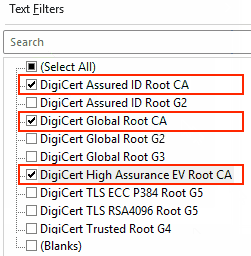
Note: Your account may not be using all these G1 root certificates to issue TLS certificates.
In the Validity end date column, use the filter function to show certificates expiring after April 14, 2026.
What's next
Use the report to determine which TLS certificates you must renew or reissue from the G2 or G3 root certificate hierarchies before April 14, 2026.